Google Classroom: The Ultimate Teacher Resource Roundup
Are you a teacher feeling overwhelmed by classroom management and struggling to engage your students? Juggling lesson planning, grading, and communication can feel impossible. Google Classroom offers a solution, but its true potential is unlocked with the right resources. This guide provides tools, templates, and strategies to maximize Google Classroom's capabilities and transform your teaching.

A teacher helps a student navigate Google Classroom, an essential tool for modern learning.
Whether you're a seasoned pro or just starting, this guide is for you. We'll explore add-ons and extensions, ready-to-use templates, and proven strategies for effective classroom management. Discover how to leverage Google Classroom to create a more engaging and efficient learning environment.
Supercharge Your Classroom: Top Google Classroom Add-ons and Extensions
Google Classroom, in its basic form, is a solid platform. However, add-ons and extensions can elevate it to a new level of functionality and customization. These tools integrate seamlessly, providing extra features that can save you time, enhance student collaboration, and improve accessibility.
Add-ons vs. Extensions
Add-ons are designed to work within Google Workspace applications like Docs, Sheets, Slides, and Forms, enhancing the functionality of these individual apps. Extensions are browser-based tools that add features to your Chrome browser and can interact with various websites, including Google Classroom. Think of add-ons as enhancing specific Google apps, while extensions broaden Chrome's capabilities across the web.
Doctopus: Streamline Assignment Creation
Doctopus is a powerful add-on for Google Sheets that simplifies distributing, collecting, and managing student work in Google Classroom. It allows you to easily create copies of a template document for each student, track their progress, and provide feedback all within a single spreadsheet.
This add-on benefits teachers by significantly reducing the time spent on administrative tasks. Instead of manually creating and distributing individual documents, Doctopus automates the process. For example, imagine you want each student to write a book report. With Doctopus, you can create a template in Google Docs, then use Doctopus to automatically generate a copy for each student in your Google Classroom roster, all pre-named and organized. This eliminates the tedious task of individual file management.
To use Doctopus, install it from the Google Workspace Marketplace within Google Sheets. Then, connect it to your Google Classroom and follow the prompts to distribute your template. You can find Doctopus here: Doctopus
OrangeSlice: Teacher Rubric - Enhance Student Feedback
OrangeSlice: Teacher Rubric is an invaluable add-on for Google Sheets that streamlines the grading process and provides students with clear, actionable feedback. It allows you to create and apply rubrics directly within Google Sheets, making it easy to assess student work against specific criteria.
This add-on benefits both teachers and students. Teachers save time by using pre-defined or custom rubrics to quickly evaluate assignments. Students benefit from receiving detailed feedback that helps them understand their strengths and weaknesses. For example, you can use OrangeSlice to create a rubric for a presentation, outlining the criteria for content, delivery, and visual aids. As you watch the presentations, you can use the rubric to quickly assign scores and provide specific comments for each student, ensuring consistent and objective evaluation.
To use OrangeSlice: Teacher Rubric, install it from the Google Workspace Marketplace within Google Sheets. Then, create your rubric and link it to your Google Classroom assignment. You can find OrangeSlice: Teacher Rubric here: OrangeSlice: Teacher Rubric
Read&Write for Google Chrome - Improve Accessibility
Read&Write for Google Chrome is a powerful extension that provides a range of accessibility tools to support students with diverse learning needs. It offers features like text-to-speech, screen masking, and simplified vocabulary, making it easier for students to access and understand online content.
This extension benefits students who struggle with reading, writing, or attention. For example, a student with dyslexia can use the text-to-speech feature to have online articles read aloud, while a student with ADHD can use the screen masking tool to reduce distractions and improve focus. It's a fantastic tool for creating a more inclusive learning environment.
To use Read&Write for Google Chrome, install it from the Chrome Web Store. Once installed, the toolbar will appear on websites and within Google Docs, allowing students to easily access the accessibility features. You can find Read&Write for Google Chrome here: Read&Write for Google Chrome
Mote - Boost Student Engagement with Voice Notes
Mote is a voice note and feedback extension that allows teachers and students to easily record and share audio comments within Google Classroom. It provides a more personal and engaging way to communicate than traditional written feedback.
This extension benefits both teachers and students by fostering a stronger connection and promoting deeper understanding. Teachers can use Mote to provide personalized feedback on student work, explain complex concepts, or simply offer encouragement. Students can use Mote to ask questions, share their thoughts, or even record audio responses to assignments. Imagine providing feedback on a student's essay by recording a short audio clip praising their insightful analysis and offering suggestions for improvement. This adds a human touch that text-based feedback often lacks.
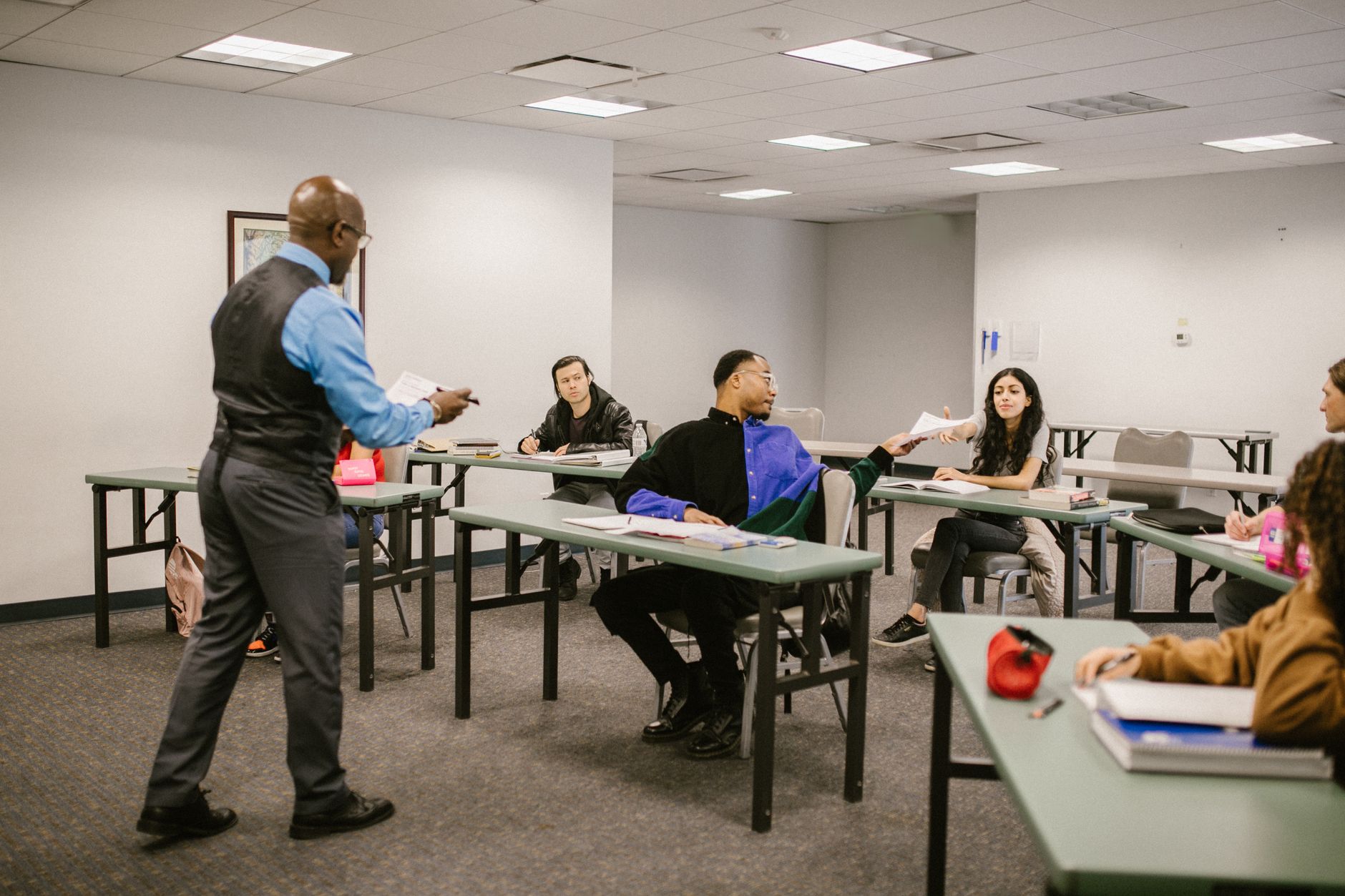
A teacher passing out papers to students in a Google Classroom setting, demonstrating the kind of streamlined assignment workflow that the platform enables.
To use Mote, install it from the Chrome Web Store. Once installed, a microphone icon will appear within Google Classroom and other Google Workspace applications, allowing you to easily record and share voice notes. You can find Mote here: Mote
Save Time and Effort: Essential Google Classroom Template Library
Creating engaging and effective assignments from scratch can be time-consuming. Google Classroom templates offer a solution by providing pre-designed frameworks that you can easily customize to fit your specific needs. Think of them as starting points that save you valuable preparation time.
Assignment Templates
Assignment templates provide a consistent structure for student work, ensuring clarity and promoting organization. They also save teachers time by eliminating the need to create assignments from scratch.
Standard Assignment Template
This template provides a basic framework for any type of assignment. It includes sections for instructions, learning objectives, due date, and grading criteria. Key features include clear headings, a space for a rubric, and a section for students to ask clarifying questions. This template is suitable for a wide range of subjects and grade levels, from elementary school writing assignments to high school research papers. You can download this template here: Standard Assignment Template (Google Docs)
Group Project Template
This template is designed to facilitate collaborative projects. It includes sections for defining roles and responsibilities, tracking progress, and documenting individual contributions. Key features include a team contract, a project timeline, and a space for peer evaluations. This template is ideal for subjects like social studies, science, or language arts, where group work and collaboration are essential. You can download this template here: Group Project Template (Google Docs)
Interactive Notebook Templates
Interactive notebook templates encourage active learning and promote student engagement. They provide a digital space for students to record notes, complete activities, and reflect on their learning.

Brainstorming ideas for effective Google Classroom strategies and assignments.
Digital Interactive Notebook Template
This template provides a customizable framework for creating a digital interactive notebook. It includes a table of contents, customizable pages, and multimedia integration options. Key features include drag-and-drop elements, embedded videos, and interactive quizzes. This template is versatile and can be used across various subjects, from math and science to history and literature, to encourage active note-taking and engagement. You can download this template here: Digital Interactive Notebook Template (Google Slides)
Assessment Templates
Assessment templates streamline the grading process and provide valuable data for tracking student progress. They offer pre-designed formats for quizzes, tests, and other assessments.
Quiz Template
This template provides a basic framework for creating a quiz in Google Forms. It includes options for multiple choice, short answer, and other question types. Key features include automatic grading, data analysis tools, and the ability to provide feedback on individual questions. This template is suitable for any subject where you need to quickly assess student understanding of key concepts, from vocabulary quizzes in language arts to problem-solving assessments in math. You can download this template here: Quiz Template (Google Forms)
Where to Find More Templates
Numerous websites offer free and paid Google Classroom templates. Some reputable resources include:
- Ditch That Textbook: Ditch That Textbook
- Shake Up Learning: Shake Up Learning
- Teachers Pay Teachers: Teachers Pay Teachers
Master Google Classroom: Proven Strategies for Success

A well-organized classroom environment, whether physical or digital, is crucial for effective learning.
Beyond tools and templates, effective Google Classroom management relies on implementing proven strategies. It's about creating a structured and engaging online learning environment.
Streamlining Assignment Workflow
Organize your Google Classroom by using topics to categorize assignments, materials, and announcements. Schedule assignments in advance to distribute the workload and provide students with ample time to complete their work. For example, create a topic for each unit or chapter in your curriculum. Within each topic, post all relevant assignments, readings, and resources. This reduces clutter and improves student access to relevant materials, making it easier for them to find what they need.
Fostering Student Collaboration
Encourage collaboration by using Google Docs for collaborative writing projects. Create discussion forums using the "Question" feature to facilitate online discussions and promote peer learning. For example, assign a group project where students work together on a Google Doc to research and write a report. Use the "Question" feature to pose thought-provoking questions related to the project and encourage students to respond to each other's ideas. This enhances teamwork and improves communication skills, preparing students for future collaborative endeavors.
Enhancing Classroom Communication
Use announcements to share important updates, reminders, and resources with your students. Create a class calendar to keep students informed about upcoming deadlines, events, and activities. For example, post an announcement reminding students about an upcoming test or share a link to a helpful study guide. Add all important dates to the class calendar, such as assignment due dates, test dates, and school holidays. This improves transparency and reduces student confusion, fostering a more organized and predictable learning environment.
Utilizing Google Classroom for Formative Assessment
Use Google Forms to create quick quizzes and polls to assess student understanding in real-time. Provide timely and specific feedback on student work to guide their learning and promote growth. For example, create a short Google Form quiz at the end of each lesson to check for understanding. Provide personalized feedback on student responses, highlighting areas of strength and areas for improvement. This provides real-time insights and allows for personalized learning, ensuring that students receive the support they need to succeed.
Level Up Your Google Classroom Game: Advanced Tips and Tricks
Ready to take your Google Classroom skills to the next level? Here are some advanced tips and tricks to help you maximize its potential.
Using the Question Feature Effectively
Use the "Question" feature for quick polls, exit tickets, and class discussions. Ask open-ended questions that encourage critical thinking and promote student engagement. For example, instead of asking "Did you understand the lesson?", ask "What was the most challenging concept you learned today and why?". This encourages deeper reflection and provides valuable feedback on student understanding.
Integrating Google Meet Seamlessly
Create and schedule Google Meet links directly within Google Classroom to facilitate virtual meetings and online learning. Set clear expectations for student behavior during virtual meetings and use features like breakout rooms to promote small group discussions. This creates a more structured and engaging virtual learning experience.
Leveraging the Power of Rubrics
Create and use rubrics for consistent and transparent grading. Clearly define the criteria for each level of performance and provide students with detailed feedback based on the rubric. This ensures fairness and helps students understand how to improve their work. Tracking student progress and iterations on assignments provides valuable information for assessment.
Archiving and Reusing Classroom Content
Archive old classrooms to keep your Google Classroom organized and clutter-free. Reuse assignments from previous years to save time and effort. Remember to update the assignments to reflect any changes in curriculum or student needs. This allows you to build upon previous work and continuously improve your teaching materials.
Empowering Teachers with Google Classroom Resources
We've covered a range of resources and strategies to help you unlock the full potential of Google Classroom, from powerful add-ons and extensions to ready-to-use templates and proven management techniques.
Implement these resources and strategies in your classroom and share your experiences in the comments below! We're always looking for new ideas to share with our community.